Kanban board
A kanban board is a visual workflow tool designed to help with managing work as it moves through various stages of a process. To make a kanban board follow the steps below:
- Click on page designer
- Press the + icon
- Click on Data Presentation and select Kanban Board
The kanban board component has now been made and added to the page. To edit this component stay in the page designer mode and click on the edit component button inside the desired component.
If you selected this option a menu opens of which the upper part looks like this:
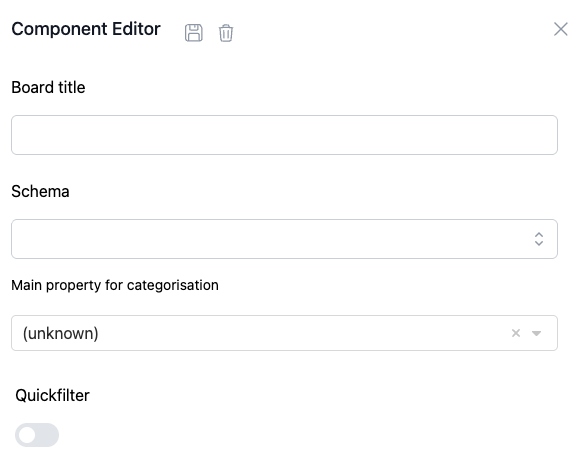
Here you can add a title to the kanban board, select the schema you want to make kanban board about and select the property of the schema on which the instances will be categorised. The different values will be the headers of the columns and the instances will be shown in one of the columns depending on the value they have on the chosen property.
With the quickfilter option you can add a search bar in the top left corner of the kanban board. With this search bar you can search for specific instances inside the kanban board.
The instances in the kanban board are shown as cards. On the lower part of the menu that opened you can edit the card design. The lower part of the menu looks like this:
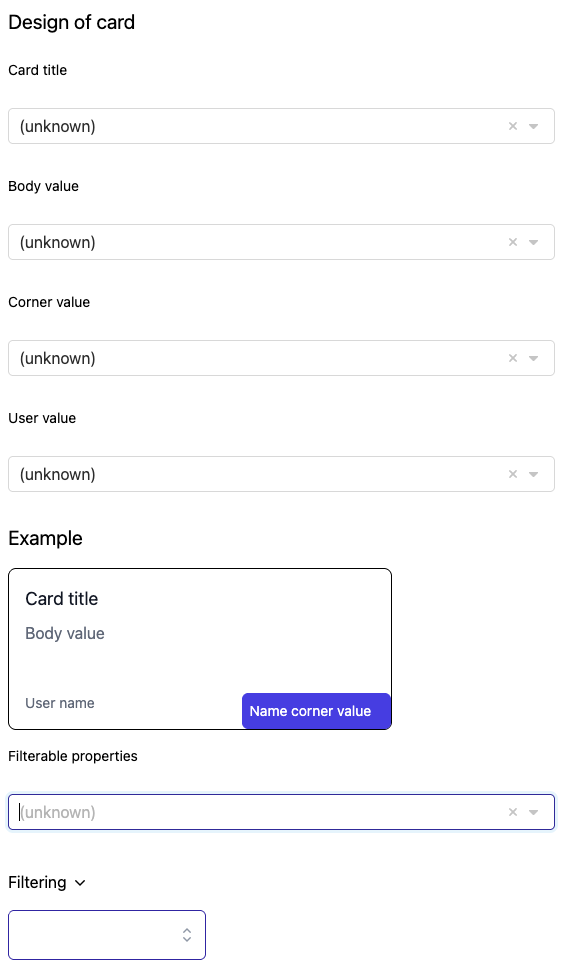
An example of the card is shown in this part of the menu. For all the parts on the cards there is a section in which you can select a property of the schema. The Card title, body value, corner value and user value can be chosen by clicking on that specific section en selecting the desired option.
Finally on the bottom of the menu you can add a filter to exclusively show the desired instances of the chosen schema.