Properties
ValueTypes: how values are saved
Each property requires a ValueType — this defines the kind of data the property will hold.
There are 12 available ValueTypes in Datastorms:
| ValueType | Description | Examples |
|---|---|---|
| String | Text | "Name", "Status" |
| Integer | Whole number | 0, 1, 2024 |
| Float | Decimal number | 0.5, -3.14 |
| Boolean | True/False | true, false |
| Date | Calendar date | 2025-06-12 |
| Time | Time of day | 12:30 |
| Date-time | Calendar date combined with time of day | 2025-06-12 12:30 |
| Single-select | One choice from a list | Active, Inactive |
| Multi-select | Multiple choices from a list | Tag1, Tag2, Tag3 |
| File | Upload a document or image | invoice.pdf, logo.png |
| Location | Map point | 📍 Amsterdam |
| User | Internal project user | Alice, Beatrix |
When adding a property to a schema:
- Choose a describing name (e.g. "Status")
- Select the appropriate ValueType
- Configure additional settings based on the ValueType (e.g. allowed options, default values, etc.)
EditorTypes: how values are entered
Each ValueType has one or more matching EditorTypes. An EditorType determines how data is entered when creating or editing an instance of a schema. If there is only one EditorType available, no selection will be shown.
What is an EditorType?
While a ValueType defines what kind of data is stored (e.g. text, number, date), the EditorType defines how the user interacts with that field in the UI. For example:
A
StringValueType can use a single-line text input, a multi-line text area or a RichText editor.
EditorType Overview
| ValueType | Available EditorTypes | Description | Function |
|---|---|---|---|
| String | Text line, Textarea, RichText, Hyperlink | Text input — short or long, or scripted value | ✅ |
| Integer | Numeric input or calculated number | ✅ | |
| Float | Decimal input or calculated float | ✅ | |
| Boolean | On/off switch or scripted logic | ✅ | |
| Date | Calendar picker or scripted date | ✅ | |
| Time | Time picker | ||
| Date-time | Combined calendar and time picker | ||
| Single-select | Choose one option from a list | ||
| Multi-select | Choose multiple options from a list | ||
| File | Upload a document or image | ||
| Location | Select a location, area, or line on a map | ||
| User | Choose from users with project access |
Default values
For some ValueTypes it is possible to set a default value. This can be done for the following ValueTypes:
- String
- Integer
- Float
- Boolean (or it is default true or false)
- Date
- Time
- Date-time
- Single-select
- Multi-select
- User (select current user)
Required
When it is always necessary that a property has a value, it can be set to required. In this case the end user must fill in a value, else the instance of the schema will not be saved.
Property kinds which always should be required are for instance ID, Name and Status.
Unique
For identification of instances certain values must be unique within the instances. Normaly this is the ID or the Name of a property.
Properties you want to use for identification of instances in imports, Unique must be set to true.
Within context
In combination with a bind to parent-relation it is possible to enable "Within context". In this case, uniqueness and autogenerate is calculated within context of the parent.
When you have a Bind to parent relation between Document and Version, you can have for instance a Number property of type Integer. When you set this Number to Required, Unique, Autogenerate and Within context, every Document can have a Version with a property Number which has a value equal to 0. But only one Version per Document can exist with the value 0!
Auto-generated
When setting Unique to true for a property of ValueType string or integer, the Datastorms autogenerate functionality becomes available.
When you want a number with a prefix as autogenerate, use the ValueType string. Integer only allows numbers, no text.
ValueType String additional auto-generate options
Generation type
This option is only available for ValueType string. There are two selection options available.
| Type | Description |
|---|---|
| Counter | Numerical counter starting from Begin number and created as shown in the example |
| UUID | A unique UUID string will be generated |
Prefix
String pre-added to the autogenerated number.
When you want to use a separating character, you can add it to the Prefix. For instance use DOC- in stead of DOC. In the first case you get DOC-1 as autogenerated value, in the second case DOC1.
Padding length
The padding length defines how many characters the number-field of the string at least contains. It will help to create strings of the same length. In the table below examples how it works for different padding lengths.
| Example | length 1 | length 2 | length 3 | length 4 |
|---|---|---|---|---|
| 1 | 1 | 01 | 001 | 0001 |
| 10 | 10 | 10 | 010 | 0010 |
| 100 | 100 | 100 | 100 | 0100 |
The Prefix will be placed in front of this number-field.
Starting number
The number the first next autogenerated value will have. Default is set to 1, but any other value can be set. This starting number is not updated after instances are created. It is however possible to update the starting number when instances exist. Next autogenerated value will use this new value, or the next available number if it already exists.
Reset count button
The Reset count button will reset the counter to start again at the beginning. When creating a new instance, the first available value will be used then. For instance if we have 01, 02, 04 and 06 the first new created instance will use 03. The second will use 05 and third will be 07. In this example if you want to start from 07, you can also update the Starting number to 7.
Using this option can break the undelete functionality, because unique values of the deleted instances are used again by newly created instances! Only use this option if you are absolutely sure you understand the risk!
Disable history saving
For sensitive data it is possible to disable history saving. Keep in mind this disables all history saving on this property, so it is never known who modified the property or when the property is modified.
Dynamic values (Function) with JavaScript
For certain ValueTypes, you can define the property value programmatically using a JavaScript function. This is useful for calculated values, pre-filled fields, or context-based logic. To do this, set the Function-toggle to true.
Use the Function EditorType when:
- You need to auto-generate values (e.g. timestamp) which are not supported by the autogenerate functionality of Datastorms
- You want to prefill based on context (e.g. logged-in user)
- You’re computing values dynamically (e.g. age based on birthdate)
These functions must be written in JavaScript and respect the expected output type of the ValueType.
What does it do?
When you select the Function EditorType:
- The value is calculated rather than manually entered
- The function must return a value that matches the selected ValueType
- The logic runs in the background at instance creation
Typical use cases include:
- Setting default values (e.g. current date, user ID)
- Calculating derived values (e.g. age based on birthdate)
- Prefilling fields based on context
If your property is a Date, the function must return a valid date string.
Example: Date one week from today
Below is a JavaScript function that returns the date seven days from the current day:
let today = new Date();
today.setDate(date.getDate() + 7);

return today;
Using Other Properties in a Function
In the function editor, you can reference other properties from the same schema instance.
On the left side of the editor, you'll find a list of available variables.
All properties listed there can be accessed in your function logic.
Error handling
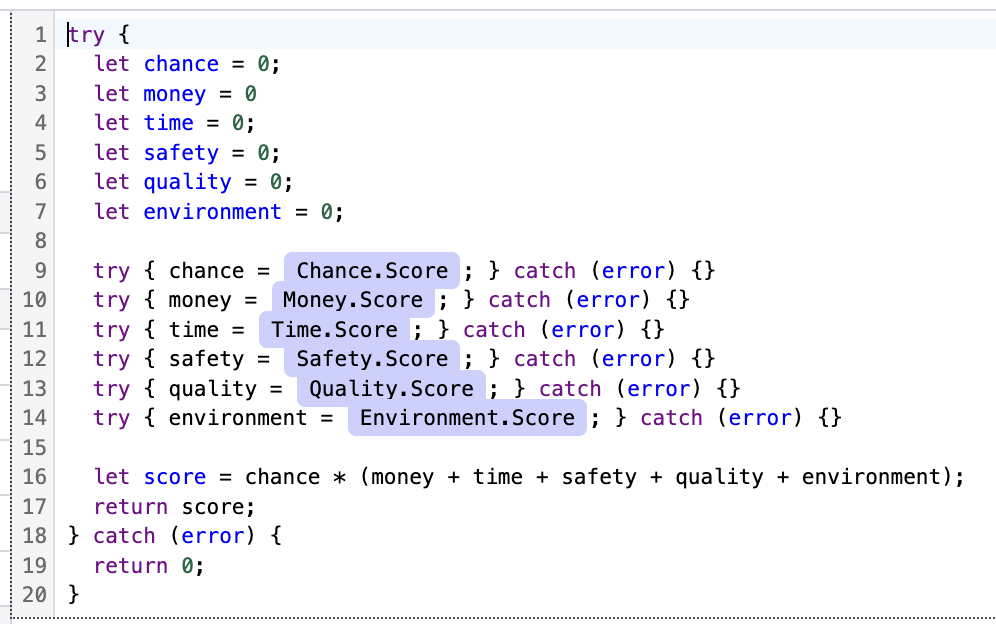
If you use related objects (via relationships), wrap access in a try...catch block. Otherwise, your function may fail if the related object is not yet linked. See example below.
try {
  return 1
} catch (error) {
  return 0
}
The function will create an error and stop when something within the try...catch block fails. It can therefore be wise to use multiple blocks to ensure the calculation is not stopped when the function partly fails.
Execution Timing Options
You can configure when the function should execute. There are three options:
- On creation : The function is evaluated once when the schema instance is created.
- On edit : The function is evaluated at creation, and re-evaluated every time the instance is edited.
- Real-time : The function is constantly evaluated on display.
Only use this for specific cases where real-time calculation is essential (like for date - time calculations). Real time calculation have a performance impact.