Roles
Introduction
Roles are used in Datastorms to define user access and permissions. For instance, you might use one to restrict a user to specific pages or to grant a team the ability to edit and create data within a schema subset.
Basics
The management of roles takes place within the project settings. When defining a role, the most important decision is determining its scope. Here are two primary approaches:
All Schemas: This role type jas the ability to grant different types fo permissions directly to all schemas and their associated properties.
Schema Subset: This role type allows you to specify wich schemas are included in the role. It also enables granting edit permissions to certain schemas while restructubg others to view-only access.
Making a new schema subset
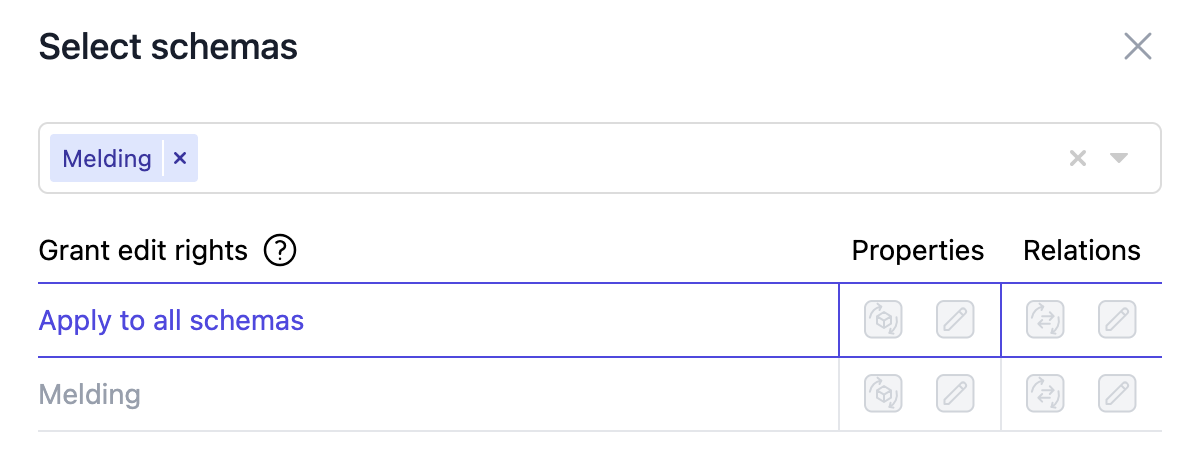
Making a new role can be done by click the green "+"-button next to search roles. Here you can choose between all schemas or schema subset. To select the specific schemas for a schema subset use the blue pen on the right side of the page.
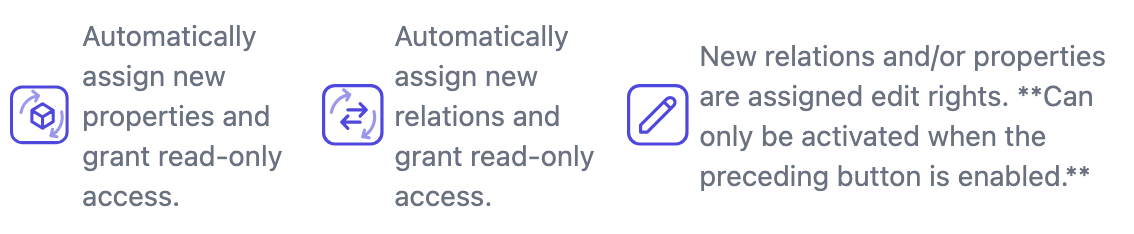
While configuring a subset, you can activate two intelligent automation settings. These are designed to keep the role functional as your project evolves. After making changes press the save button after your changes.
Permission
For every schema included in a role, you can define exactly how a user interacts with the data. To speed up the process, you can use the headers at the top of the columns to toggle permissions for all rows at once.
| Action | Description |
|---|---|
| Read | View existing data and entries |
| Edit | Modify existing data |
| Create | Add new entries to the system |
| Delete | Remove entries from the system |
| Lock | Prevent further modifications by locking the state of specific data entries |
| View Revisions | Access the audit trail and history of changes made to an entry |
It is essential to understand that permissions in Datastorms are cumulative. This means that rights are always added together and can never be used to exclude or "take away" access granted by another role.
Navigation and User Assignment
Beyond data access, you must also define Page Rights. This determines which specific sections of the application menu are visible to the user. You can choose to give a role access to all pages or curate a specific navigation path. Just like data permissions, these page rights stack if a user holds multiple roles.
Finally, roles are activated by assigning them to users through the Users tab. Within this tab, you can easily search for team members and add them to the role. The interface supports bulk actions, allowing you to manage large groups of users or remove access with just a few clicks.